

The project manager
The editor opens on the project manager when it starts without a project, and goes back to it when you close one. It has two tabs, Projects and Samples. The header also shows the editor’s version, and its Documentation link opens these pages in your browser.
The first run
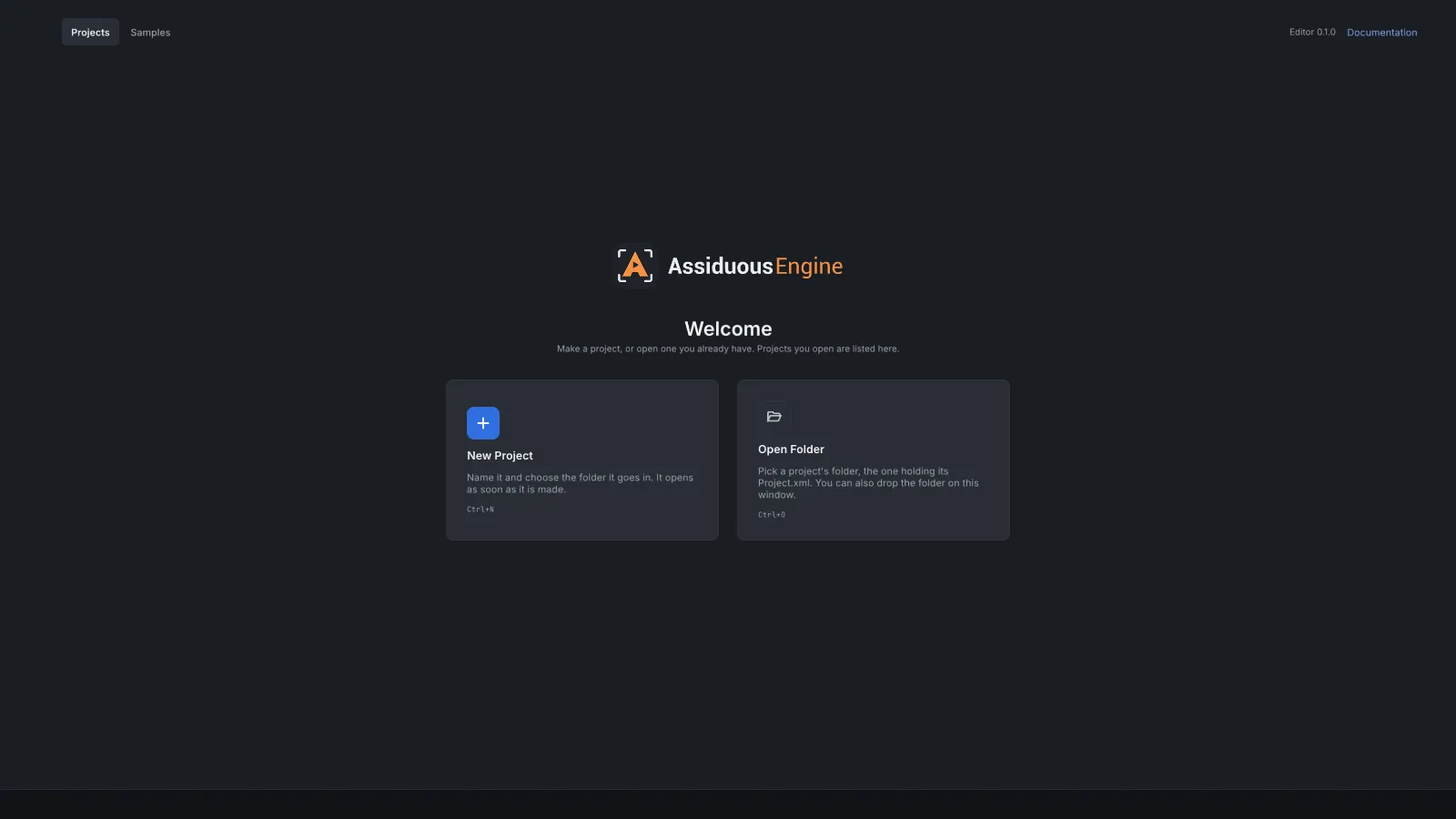
Section titled “The first run”With no projects listed yet, a welcome takes the list’s place. It has two cards: New Project (Ctrl+N) and Open Folder (Ctrl+O). The Samples tab is there from the start too.
Projects
Section titled “Projects”The toolbar holds New Project…, Open Folder…, a search box and the view controls:
- The search box (Ctrl+F) matches a project’s name or its folder.
- Sort orders the list by Last opened or by Name.
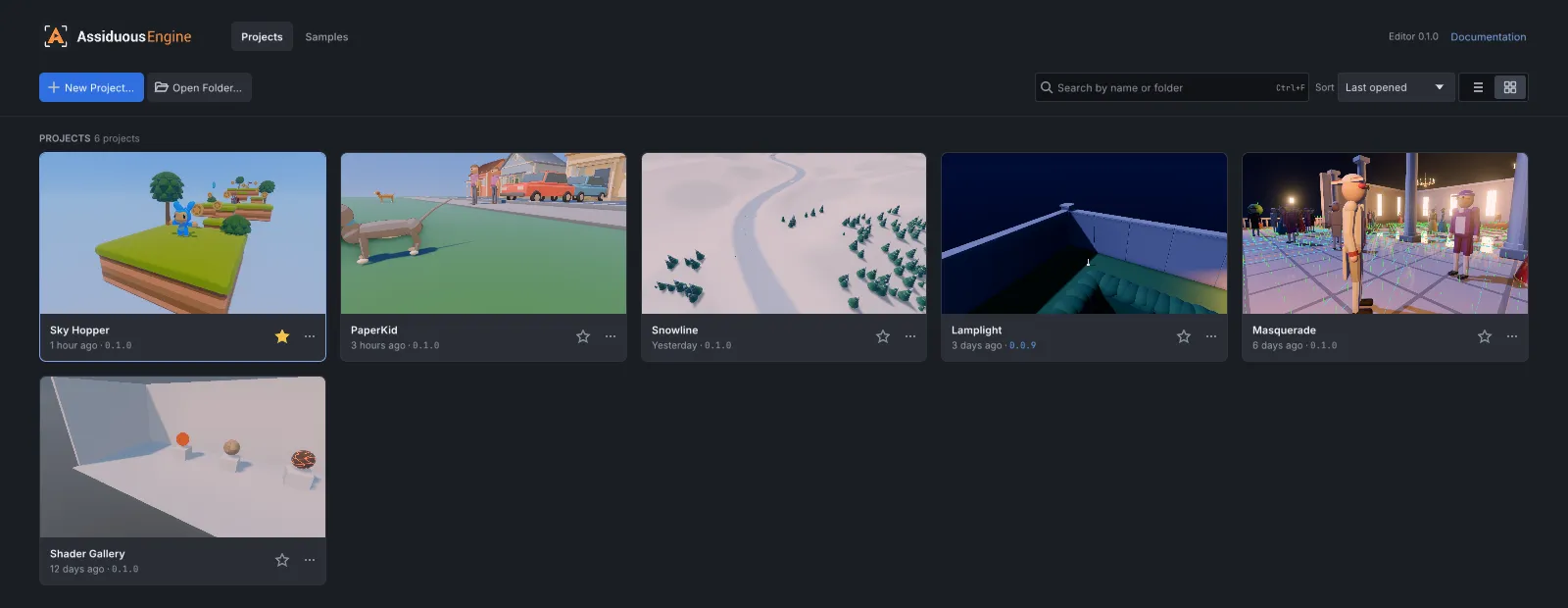
- The two buttons beside it switch between a list and a grid of pictures.
Each row shows:
- the project’s picture and name;
- its folder, with your home folder shortened to
~(the full path is in its tooltip); - when you last opened it: “Just now”, “5 minutes ago”, “Yesterday”, “3 days ago”, then a date;
- the engine version it was last saved with.
When that version is newer than the editor, the row says Made with a newer engine. When it is older, the row says Upgrades when opened.
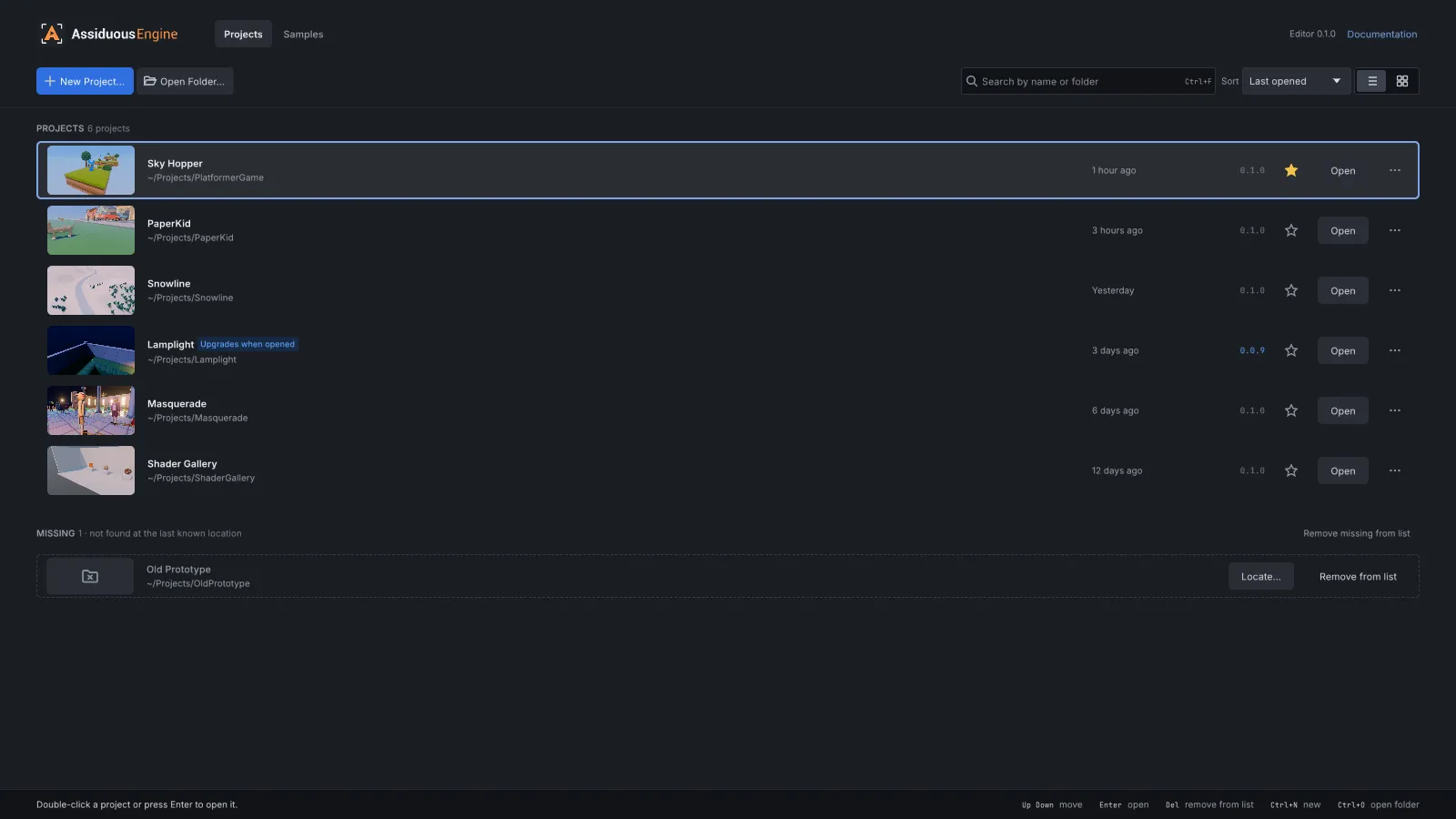
The star pins a project, and pinned projects come first whatever the sort. Open (or a double-click) opens the project. In the grid, click a project’s picture to open it.
The … button beside Open has a menu with Open and the rest:
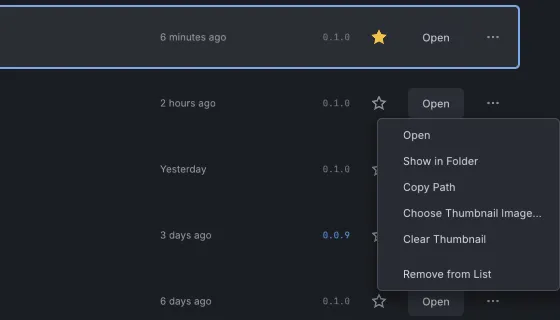
- Show in Folder opens the project’s folder in your file manager.
- Copy Path copies the folder’s path.
- Choose Thumbnail Image… picks the picture the manager shows for the project. It is stored
in the project as
Editor/launcher-thumbnail.png. Clear Thumbnail removes it again. - Remove from List takes the project off the list. Its files stay where they are.
You can also drop a project’s folder on the window to open it.
Missing projects
Section titled “Missing projects”A listed project whose folder no longer holds its Project.xml moves to a Missing section
under the rest. Locate… points the entry at the folder the project is in now. Remove from
list drops the entry, and Remove missing from list drops all of them. Nothing in the project
manager deletes files.
Up and Down move the focus between projects, Enter opens the focused one (or locates a missing one), and Del removes it from the list. Ctrl+F, Ctrl+N and Ctrl+O search, make a project and open a folder. The footer lists the keys and says what just happened.
Opening a project from another version
Section titled “Opening a project from another version”A project last saved by an older engine opens after a question. Back Up and Open copies its
Project.xml first. Open Without Backup opens it as it is. Its content is upgraded as its
assets are saved again, so keep the project under version control to be able to go back.
A project from a newer engine opens only after a warning (Open Anyway), because this editor may misread what the newer one wrote. Open it with the newer engine if you can.
New Project
Section titled “New Project”New Project asks for a Name and a Location, the folder it is made in. Browse… picks the location. The location starts where your last project went.
With Create a folder named after the project in it on (the default), the project gets a folder of its own in the location. The folder’s name is the project’s name made safe for a file system:
- spaces become
-, and runs of-become one; - letters, digits,
-,_and.stay, and so do letters beyond ASCII; - other characters are dropped, such as
/ \ : * ? " < > |and' ! & #; - a
-or.at either end is dropped; - a name Windows reserves, such as
CON,NULorCOM1, gets-Projectadded.
So “Bob’s Game: Part 2!” is made in Bobs-Game-Part-2. The project keeps the name you typed.
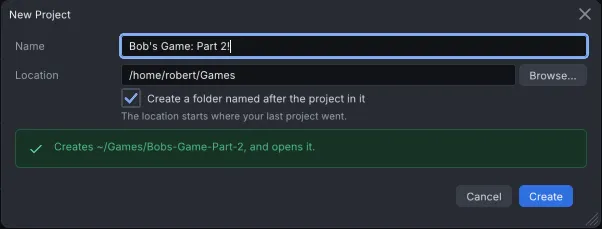
A line under the fields says what Create will do and updates as you type:
- Green says where the project will be made; Create makes it and opens it.
- Amber says the location does not exist yet; it is made along with the project.
- Red says why the project cannot be made there. Create waits while the line is red: the project has no name, the name has no letter or digit for a folder, no location is set, the location is a file, the folder is a project already, or the folder already holds files. With the folder option off, the location itself must be empty.
Samples
Section titled “Samples”The Samples tab lists the sample games made for this version of the editor. Each card shows the game’s picture, a line on what it is, its download size and Download….
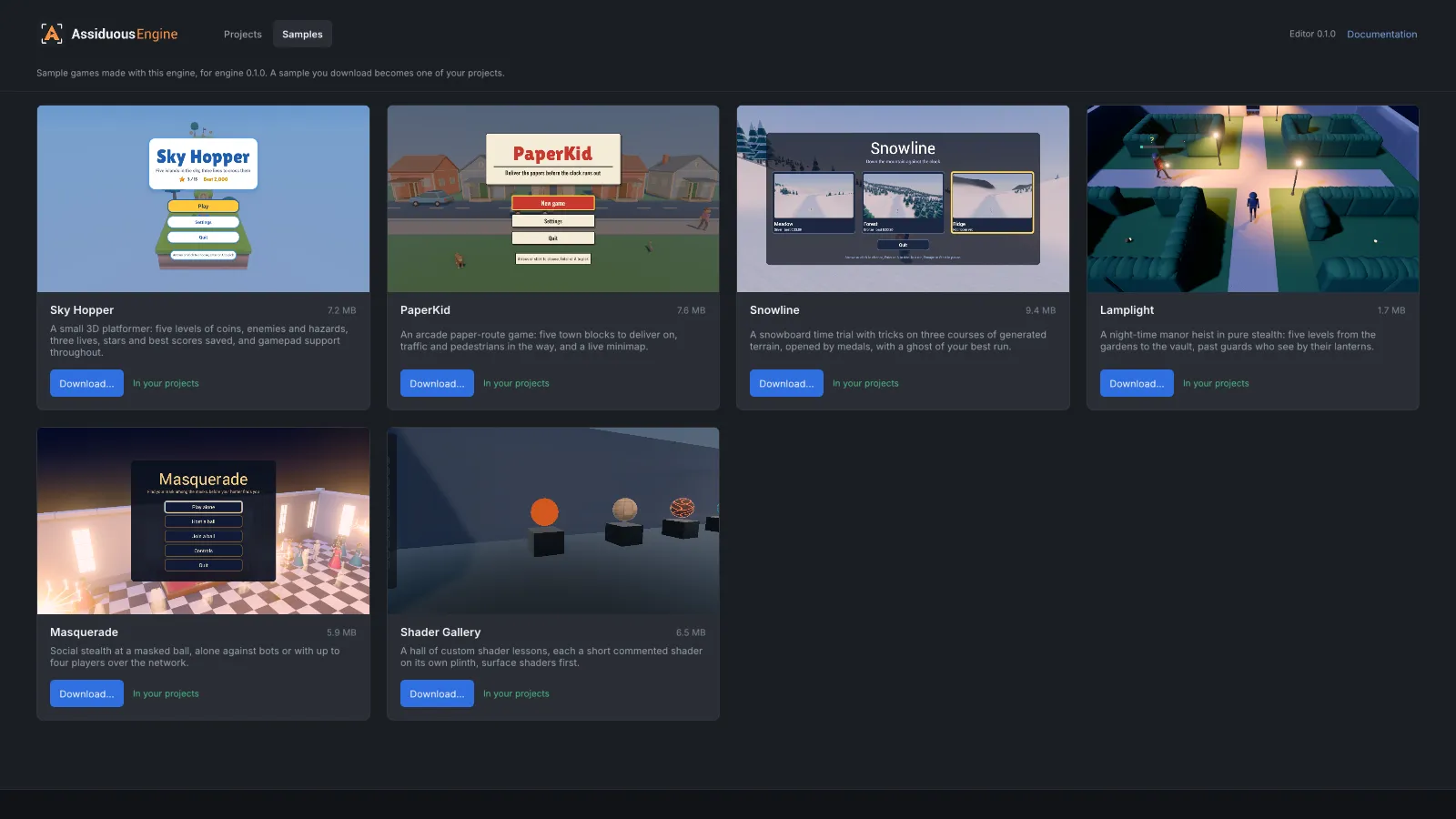
Download… opens a dialog like New Project: a location, Browse…, and Create a folder named … in it, with the same check line.
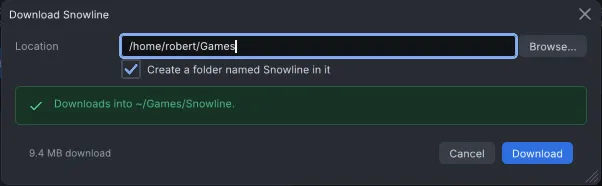
Download starts the download, and the dialog then shows its progress, with Cancel. When the download is done, Open opens the new project; if it failed, the dialog says why and Try again goes back to the start. A cancelled download leaves nothing behind.
You can close the dialog while the download runs. It goes on, and the sample’s card shows its progress and a Cancel button. A download also goes on after you open a project.
Each download is checked against the release’s checksum before it is unpacked. Once it is done, the sample is one of your projects, and its card says In your projects.
The samples come from the engine’s release that matches the editor’s version. A build of the editor between releases has none, and the tab says that no samples are published for its version. Without a network connection, the tab says the samples could not be fetched, with Retry.