

Assets and importing
Everything a project uses, from scenes to sounds, is an asset, listed in the Assets panel.
The Assets panel
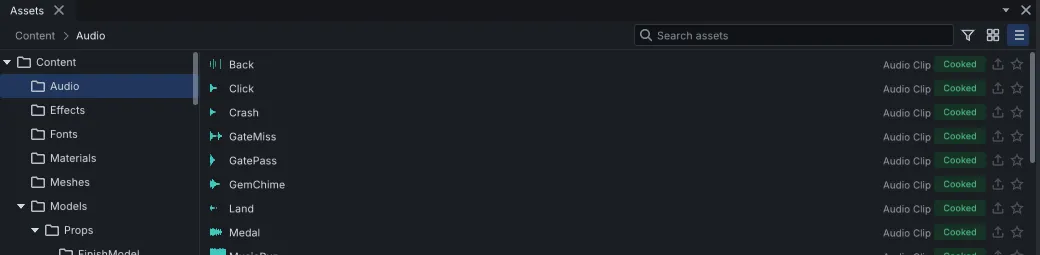
Section titled “The Assets panel”On the left is the tree of groups (folders), with Content, the whole project, at the top. On
the right are the selected group’s contents: its groups first, then its assets. Double-click a
group to go into it, and use the path at the top of the panel to go back up.
The toolbar beside the path holds:
- the search box, which looks in the shown group and every group under it, by name or by the
start of an asset’s ID. From
Contentit searches the whole project, and each match says which group it is in; - the filter button, which shows only one type of asset;
- the Tiles and List buttons, which show the assets as thumbnails or as rows.
In List view, each asset shows its type and whether it is cooked: Cooked, Stale (not cooked yet, or being cooked) or Failed (the Console says why). A star marks a favourite, and a mark shows what is set to Always Export. Tiles view shows only each asset’s thumbnail and name.
- Double-click an asset, or press Enter, to open it.
- Ctrl+click and Shift+click select several.
- F2 renames, and Delete deletes after asking.
- Right-click an asset for Open, Rename, Duplicate, Copy GUID, Copy Path, Pin as Favourite, Always Export, Cook, Rebuild and Delete…. Cook, Rebuild and Delete act on every selected asset.
- Right-click the background for New, New Group, Import…, and the shown group’s own commands: Rename, Always Export Its Contents, Cook Group, Rebuild Group and Delete Group….
Creating assets
Section titled “Creating assets”The background menu’s New makes new assets: scenes, prefabs, input maps, render textures, navigation zones and particle effects, then by category:
| Category | Assets |
|---|---|
| Animation | Animation Graph, Property Animation Clip |
| Audio | Audio Bus Layout, Sound Cue |
| GUI | GUI Document, GUI Style Sheet |
| Materials | PBR Material, Unlit Material, Phong Material, Lit Surface Shader, Unlit Surface Shader, Low-Level Shader |
| Physics | Physical Material, Collision Shape |
| Primitives | Cube, Sphere, Plane, Cylinder, Cone, Torus |
| Rendering | Environment Profile, Post Process Profile |
| Scripts | A Behavior, Level or Game script, in Luau or AngelScript |
| Terrain | Heightfield, Terrain, Splatmap, Vegetation Mask |
A new asset is created in the shown group and opens in its page. The File menu has the same list; an asset made from there goes into its type’s usual group instead.
Always Export
Section titled “Always Export”An export packs every cooked asset, unless its preset is set to keep only what the game reaches
from its default scene and startup script. An asset the game loads only by name from a script is
not reached that way. Mark it Always Export (or mark a group Always Export Its Contents)
and the export keeps it, with everything it uses. The marks are saved in the project’s
export_roots.xml.
Importing your own files
Section titled “Importing your own files”Bring files in with Import… on the Assets panel’s right-click menu, or drag them onto the editor from your file manager. They land in the group the Assets panel shows.
| Kind | File types |
|---|---|
| Models | .glb, .gltf, .fbx, .obj |
| Textures | .png, .jpg, .jpeg, .tga, .bmp, .hdr, .dds |
| Images | .png, .jpg, .jpeg, .tga, .bmp, .hdr |
| Sounds | .wav, .ogg, .mp3, .flac |
| Fonts | .ttf, .otf, .ttc |
| Scripts | .luau, .as |
| Shaders | .hlsl |
| GUI | .xml (documents), .css (style sheets), .svg (vector images) |
| Terrain | .png and .r16 heightfields, .png splatmaps and vegetation masks |
A file of a type no importer takes is reported and left out. EXR is not supported; use HDR.
The import dialog
Section titled “The import dialog”The Import dialog shows where the files go (click the Into field to pick another group),
what each file will make, and its options. With several files, it lists them on the left, each
with a checkbox to keep or drop it; select one to see its options. A file that more than one
importer can take (a .png can be a texture, an image, a heightfield, a splatmap or a vegetation
mask) has a choice of importer. A single file with nothing to choose imports straight away,
without the dialog.
If an asset in the group already has the name an import would use, the dialog says so on the file. An asset of another type has to be renamed first; an asset of the same type, imported from another file, can be replaced or kept beside the new one.
A model lists the meshes, materials, textures, skeleton, animation clips and collision it will make; clear any you do not want, or rename them. Its options:
| Option | Default | What it does |
|---|---|---|
| Textures | On | Import the model’s images as textures |
| Materials | On | Import its materials, with the textures wired in |
| Animations | On | Import its skeleton and animation clips |
| Generate prefab | On | Make a prefab of the model, to place in scenes |
| Generate scene | Off | Make a scene of the model |
| Generate collision | Off | Make a collision shape per mesh, and add colliders and a static body to the prefab |
| Generate LODs | On | Make lower detail levels for large static meshes (10,000 triangles and up); meshes with their own _LOD1 and _LOD2 levels keep those |
| Root motion | Off | New clips move the character by their root’s travel and turn, and play in place |
| Convex collision | Off | Make that collision from simplified convex hulls (which can move) instead of exact triangle meshes |
A sound’s options are Stream (on by itself for sounds longer than 10 seconds or larger than 2 MB), Force mono, Loop, Trim trailing silence and Normalize. Other file types have no options.
Where imported files go
Section titled “Where imported files go”The editor copies each file into the project’s Sources/ folder; a glTF’s textures are copied
beside it. To update an asset, import the same file again into the same group: the dialog starts
from your earlier choices, and a model’s generated prefab or scene is made again.
Cooking
Section titled “Cooking”The game does not load assets as you edit them: it loads their cooked form, in the project’s
Cooked/ folder. The editor cooks for you:
- after an import, the group the files landed in;
- when you create an asset, and when you save most kinds of asset in their page;
- when you open a page whose asset, or something it uses, is not cooked yet;
- when you press Play, before the game starts;
- when a file in
Sources/changes on disk (the editor checks every two seconds), so a model you export again from your modelling tool updates by itself.
Build > Cook All cooks everything that changed, and Build > Rebuild All cooks everything again. Build > Cook This Asset saves the active page and cooks its asset and what it uses. The Assets panel’s right-click menu does the same for the selected assets or for one group. Cooking runs in the background; its progress is in the status bar and its messages in the Console.